Mobile Ordering Now Available at Chef Mike’s Sub Shop
Download the Transact Mobile Ordering App to order a custom sub for pick-up at Chef Mike’s Sub Shop.
Starting Spring 2026, a pick-up time must be scheduled when placing an order.
How to Place and Pick Up an Order
- The app is available in the Apple App Store or Google Play.
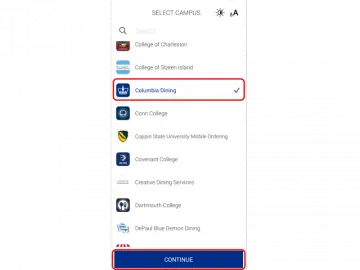
- Select “Columbia Dining” as your campus and then click on “Continue.”
- Enter your UNI and password, and complete the DUO authenticate. See our FAQs at the bottom of the page if you experience difficulties logging into the app.
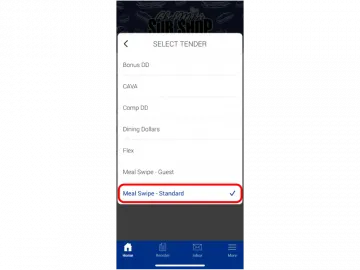
- Meal Swipe – Standard will deduct one meal swipe from your weekly or term balance.
- Meal Swipe – Guest will deduct one meal swipe from your balance of complimentary meals. Most, but not all plans, come with complimentary swipes. Review the plans for CC/SEAS First-Year Students, Upperclass/TC Students, and Graduate/Professional Students to learn more.
- Dining Dollars will deduct the cost of the meal from your balance of Dining Dollars. You can check your balance or add more funds on SSOL.
- Bonus Dining Dollars will deduct the cost of the meal from your balance of Bonus Dining Dollars, which refers to Dining Dollars awarded to you during a Dining Plan sign-up promotion. To check your balance of bonus Dining Dollars, contact Dining Plan Manager Rosie Fernandez.
- Comp Dining Dollars are available only to select plan holders.
- Flex will deduct the cost of the meal from your balance of Flex. You can check your balance or add more funds on SSOL.
Please note: The system is not capable of confirming your balance until payment is processed at the order pick-up time. If you do not have sufficient funds, you will receive an error message in the app at pick-up time. Always confirm that you have sufficient funds before placing an order.
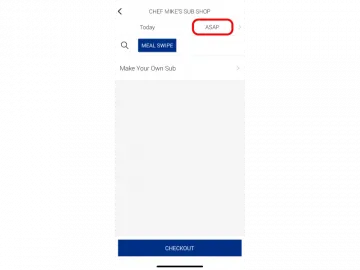
The app will default the pick-up time to as soon as possible within the mobile ordering window, 11:30 a.m. to 8 p.m.
Follow the prompts to build your sub.
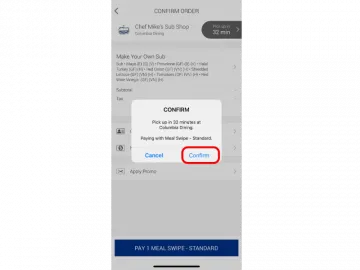
- After selecting "Checkout," you can review and change your pick-up time and payment method. Select "Pay" to submit your order, and then "Confirm."
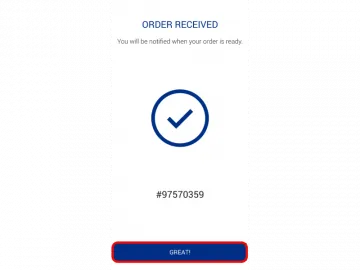
- Once your order is processed, you will see an "Order Received" screen in the app. You will also receive a confirmation email.
- Click "Great!" to return to the app homepage.
- You do not need to swipe your card as payment has already been charged through the app.
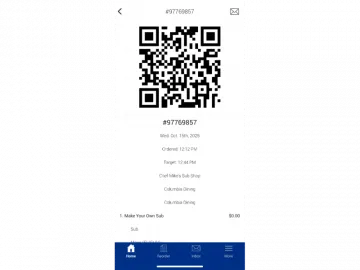
- Show your order barcode to the cashier for them to scan. Tip: turn up the brightness on your device to make it easier to scan.
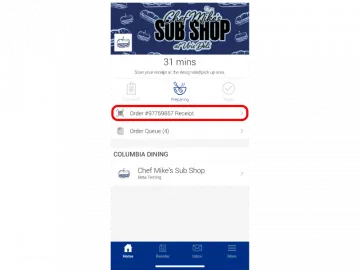
- Find the barcode in the app by clicking on "Order # Receipt" from the app homepage.
- We will not accept screenshots of the barcode or the order confirmation email.
- Then, pick up your sub, chips, drink, and dessert from the Mobile Pick-Up Area. Your sub will be labeled with your order number. Gluten-free dessert is available by request.
- Orders must be picked up within 15 minutes of the pick-up time.
Step-by-Step Screenshots
Image Carousel with 12 slides
A carousel is a rotating set of images. Use the previous and next buttons to change the displayed slide
-
Slide 1: Step 1. Open the app. Select "Columbia Dining" as your campus and then click "Continue."
-
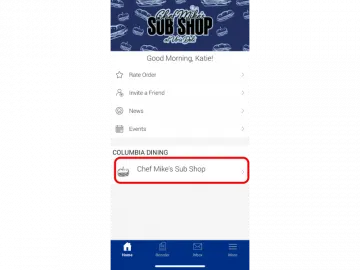
Slide 2: Step 2a. Select "Chef Mike's Sub Shop"
-
Slide 3: Step 2b. Select payment
-
Slide 4: Step 3a. Click on ASAP to adjust the order pick-up time
-
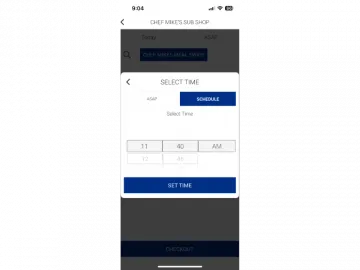
Slide 5: Step 3b. Set your pick-up time
-
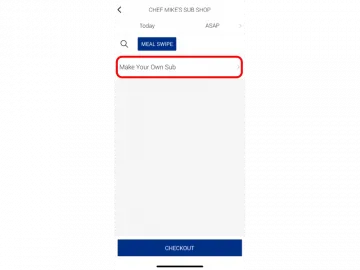
Slide 6: Step 4. Click on "Make Your Own Sub." Then, follow the prompts to customize your order.
-
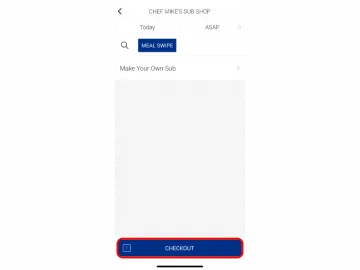
Slide 7: Step 5a. Click "Checkout" to proceed
-
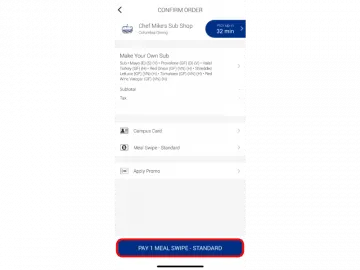
Slide 8: Step 5b. Click "Pay" to submit your order
-
Slide 9: Step 5c. Click "Confirm"
-
Slide 10: Step 5d. Click "Great" to return to the app homepage
-
Slide 11: Step 6a. Click "Order Receipt"
-
Slide 12: Step 6b. Show the order confirmation barcode to the cashier for them to scan. Then, grab your sub and sides from the Mobile Pick-Up Area.
Watch our How To Video
FAQs
- Barnard and Teachers College students must have mail forwarding enabled so that the app registers their account as a Columbia email address. Follow these steps to enable mail forwarding.
- If you continue to have technical issues after enabling mail forwarding, contact [email protected].
- If you continue to have technical issues after enabling mail forwarding, contact [email protected].
- Columbia students: contact [email protected].
Chef Mike’s Sub Shop Express is available if you would like a quick, grab-and-go option for the hot and cold daily specials.
You may not have sufficient funds. To continue, remove the sub from your cart. Then, return to the home page, select a different payment tender, and try again.
Pending orders are viewable in the "Order Queue" of the app homepage.
Once placed, orders cannot be edited and pick-up times cannot be amended.
If you need to make changes to an order scheduled for a later pick-up, and the pick-up time is more than 30 minutes away, you may cancel the current order and place a revised order.
Cancellations must be submitted at least 30 minutes prior to pick-up.
To cancel your order, select "Order Queue" from the homepage of the app. This will show all pending orders. Then, select "Cancel."
Always confirm that you have sufficient funds/swipes before placing an order:
- Check Dining Dollar and Flex balance on SSOL
- Check Bonus Dining Dollar balance by contacting Dining Plan Manager Rosie Fernandez.
- Check meal swipe and guest meal swipe balance on SSOL.
The system is not capable of confirming your balance until the order pick-up time when payment is processed.
- Orders placed ASAP will be denied immediately.
- Orders placed for pick-up later will appear as pending until the pick-up time, at which time the order will be denied.
No, you will have already been charged through the app.
Orders will be held for 15 minutes after the scheduled pick-up time. Please be prompt.
Yes, we will deduct the payment from your account at your pick-up time.
- Click on the “Reorder” icon on the app homepage.
- Select the past order you would like to repeat.
- If necessary, make adjustments to the pick-up time, payment method, or order.
- Click "Pay" to submit.
Each cart is limited to one sub. You will need to place a new order for each sub. However, there is no limit on how many orders you can place in a day.